

Understanding Turbobit Premium Cancellation and Refund
Turbobit Premium Cancellation and refund might seem daunting, but with the right guidance, it’s a straightforward process. Whether you’ve found a better alternative or simply no longer need the service, canceling your subscription and securing a refund is possible if you follow the correct steps. This guide covers everything you need to know.
Many users sign up for Turbobit Premium expecting uninterrupted fast downloads and ad-free usage, but sometimes circumstances change. Perhaps you’ve realized you don’t download files as often as you thought, or you’ve discovered that a free account meets your needs. Whatever the reason, understanding the cancellation policy is essential.
Before you start, it’s important to know that Turbobit’s refund policy is not unlimited. The company typically offers refunds only under specific conditions, such as technical issues that prevent you from using the service as advertised. This guide will help you navigate these conditions and maximize your chances of a successful refund.
Step-by-Step Turbobit Premium Cancellation Process
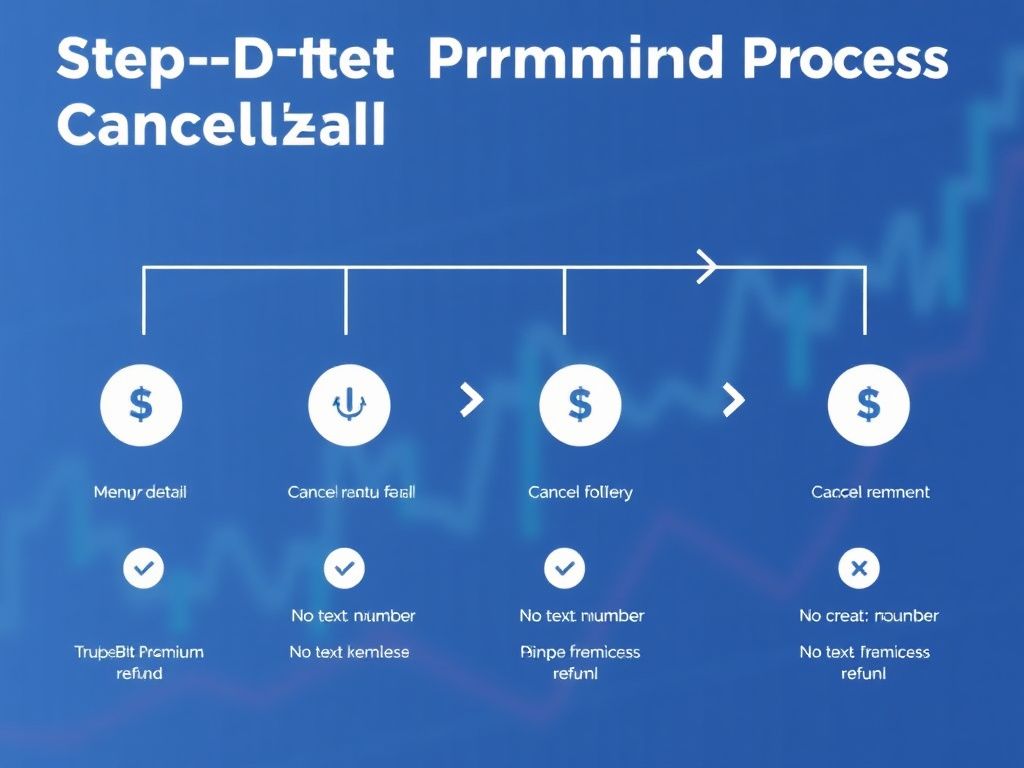
Canceling your Turbobit Premium account is usually done through your account settings. Here’s a reliable method to ensure your subscription is terminated:
- Log in to your Turbobit account using your credentials.
- Navigate to the Account Settings section. You can find detailed instructions in our Turbobit Account Settings guide.
- Look for the Subscription or Premium tab.
- Select the option to Cancel Subscription or Disable Auto-Renewal.
- Confirm your choice. You should receive a confirmation email.
If you don’t see a cancellation option, contact Turbobit Support directly. Our Support Help Center guide provides additional tips for reaching their team efficiently.
What Happens After Cancellation?
Once you cancel, your Premium features will remain active until the end of your current billing period. You won’t be charged again. However, you may lose access to features like fast download speeds and ad-free browsing after the period ends.
Refund Eligibility and How to Claim
Turbobit Premium refunds are not guaranteed for all cancellations. The company’s policy generally allows refunds within a short window after purchase, typically 14 days, and only if you haven’t used the service extensively. To check your eligibility, review the terms of service you agreed to during signup.
If you believe you qualify for a refund, follow these steps:
- Gather evidence: Screenshots of any technical issues or billing errors.
- Write a clear, polite email to Turbobit Support explaining your situation.
- Reference your account details and the reason for the refund request.
For more context on what Turbobit Premium offers and whether it’s right for you, read our Features and Benefits article.
Common Mistakes to Avoid
Many users accidentally miss the refund window or fail to provide sufficient proof. Avoid these pitfalls by acting quickly and documenting everything. Also, never share your account credentials; refer to our guide on account sharing legality for more information.
Alternatives to Cancellation
Before you cancel, consider whether a different Turbobit plan might suit you better. The pricing packages include various options, from short-term to long-term subscriptions. You might also find that using the service differently, such as integrating it with a download manager, improves your experience. Check our Download Manager Integration guide for tips.
If you’re still unhappy, remember that Turbobit also offers a free ad-supported tier that might meet your needs without a subscription. Explore all options before making a final decision.
We hope this guide helps you navigate the Turbobit Premium cancellation and refund process smoothly. If you have further questions, don’t hesitate to reach out to Turbobit Support or explore our other resources. Your satisfaction matters, and with the right approach, you can resolve any billing issues efficiently.